ちょいと前に友達のブログの移動を手伝ったので手順をまとめておきます。

はてなブログproで独自ドメイン使用。レジストラはお名前.com。
移動先のサーバーはXサーバー。
すべての画像をダウンロードする
はてなブログの画像はフォトライフっていう結構変なところに保存される。
これをいったんローカルに保存。
import os
import re
import urllib.request
import time

def download_hatena_images(export_file, output_dir="hatena_images"):
    if not os.path.exists(output_dir):
        os.makedirs(output_dir)

    # はてなフォトライフの画像URLを抽出
    pattern = re.compile(r'https?://cdn-ak\.f\.st-hatena\.com/[^\s"\'<>]+?\.(?:jpg|jpeg|png|gif|webp)', re.IGNORECASE)

    with open(export_file, 'r', encoding='utf-8') as f:
        content = f.read()

    urls = list(set(pattern.findall(content)))
    print(f"合計 {len(urls)} 枚の画像が見つかりました。ダウンロードを開始します...")

    for i, url in enumerate(urls, 1):
        filename = os.path.basename(url)
        save_path = os.path.join(output_dir, filename)

        if not os.path.exists(save_path):
            try:
                # はてな側のブロックを防ぐためUser-Agentを付与
                req = urllib.request.Request(url, headers={'User-Agent': 'Mozilla/5.0'})
                with urllib.request.urlopen(req) as response, open(save_path, 'wb') as out_file:
                    out_file.write(response.read())
                print(f"[{i}/{len(urls)}] 完了: {filename}")
                time.sleep(0.5) # サーバーへの負荷軽減
            except Exception as e:
                print(f"[{i}/{len(urls)}] エラー: {filename} - {e}")
        else:
            print(f"[{i}/{len(urls)}] スキップ (取得済): {filename}")

# 対象のファイル名が合っているか確認して実行してください
download_hatena_images("sauna.color-hiyoko.com.export.txt")
ログの量によっては結構時間がかかる。寝る前などに。
hosts編集
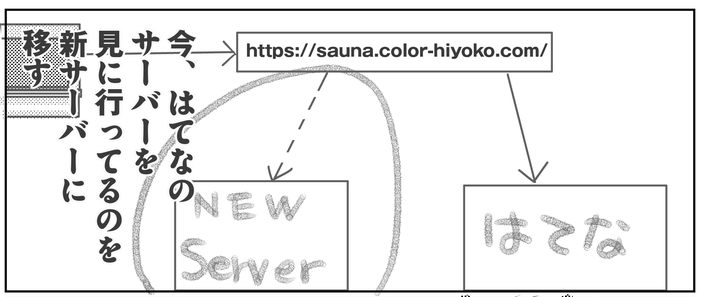
自分のローカル環境でXサーバーの中身を見に行くようにする。
Xserverのコンパネ見て、サーバーのIPアドレスをメモっておく。
“C:\Windows\System32\Drivers\etc\hosts”をデスクトップにコピーする(そのまま編集するのが結構面倒なので)。
デスクトップのhostsを開いて最後の行に
IPアドレス(半角スペース)URL
を追加して上書き保存。そのファイルを”C:\Windows\System32\Drivers\etc\hosts”に上書きコピー。
# Copyright (c) 1993-2009 Microsoft Corp.
#
# This is a sample HOSTS file used by Microsoft TCP/IP for Windows.
#
# This file contains the mappings of IP addresses to host names. Each
# entry should be kept on an individual line. The IP address should
# be placed in the first column followed by the corresponding host name.
# The IP address and the host name should be separated by at least one
# space.
#
# Additionally, comments (such as these) may be inserted on individual
# lines or following the machine name denoted by a '#' symbol.
#
# For example:
#
#      102.54.94.97     rhino.acme.com          # source server
#       38.25.63.10     x.acme.com              # x client host

# localhost name resolution is handled within DNS itself.
#	127.0.0.1       localhost
#	::1             localhost
XXX.XXX.XXX.XXX ~.com
WordPress構築
XserverでWordPressインストール
フォルダが作成されるので非公開に(サーバーの設定でbasic認証掛けられる)
URLはhttpで(sつけない)
hostsに書いたURLでアクセスできるをの確認。
テーマ・プラグイン
URL一括置換用
Search Regex – WordPress プラグイン | WordPress.org 日本語
インポート用
Movable Type and TypePad Importer – WordPress プラグイン | WordPress.org 日本語
google周り
Site Kit by Google – Analytics, Search Console, AdSense, Speed – WordPress プラグイン | WordPress.org 日本語
XML Sitemap Generator for Google – WordPress プラグイン | WordPress.org 日本語
エラー対策
Redirection – WordPress プラグイン | WordPress.org 日本語
アイキャッチ画像
XO Featured Image Tools – WordPress プラグイン | WordPress.org 日本語
つづく